




Apple Passwords App: What It Changes for Passkeys and Sharing

Tech moves fast. One week your phone works one way, the next week Apple pushes an update and everything looks different. If you’ve opened your iPhone after updating to iOS 18 and spotted a new app called Passwords, you’re not alone in wondering what it is, whether it’s safe, and whether you actually need to bother with it.
Security is one of those topics where bad advice can genuinely cost you. And there’s a lot of noise out there, half of it written as if you already have a computer science degree. So we’re cutting through it. This guide covers exactly what the Apple Passwords app does, how passkeys now fit into the picture, what sharing looks like, and what you actually need to do.
No jargon left unexplained. No hype. Just the facts.
What Is the Apple Passwords App?
The Apple Passwords app is a built-in password manager included with iOS 18, iPadOS 18, macOS Sequoia, and visionOS 2. It stores passwords, passkeys, Wi-Fi passwords, and verification codes in one place, and syncs everything across your Apple devices using iCloud Keychain. No separate download required.
If you’ve already updated to any of those operating systems, you already have it. Look for it on your home screen or in your app library. It also works on Windows through iCloud for Windows, using Chrome or Edge.
The app works on iPhone, iPad, Mac, and Apple Vision Pro. Any device running a compatible version of the software can access the same saved data, as long as you’re signed in with the same Apple ID.
Passwords App vs iCloud Keychain
The Passwords app didn’t replace iCloud Keychain. It sits on top of it. iCloud Keychain is still the underlying sync system. What changed is that your saved items now live in a proper, dedicated app instead of being buried four menus deep inside Settings.
Before iOS 18, finding a saved password meant going to Settings > Passwords and hoping you could remember which account you were looking for. It worked, but it wasn’t exactly quick. The new app gives you a proper interface with sections for passwords, passkeys, Wi-Fi credentials, verification codes, and shared items, all searchable, all in one place.
Think of iCloud Keychain as the storage room that was always there. The Passwords app is the organised filing cabinet now sitting in front of it.
Passkeys in the Passwords App
Passkeys now live alongside your regular passwords inside the Passwords app. They’re easier to find, easier to manage, and easier to use than before. If a website or app supports passkeys, the Passwords app stores them automatically when you create one.
This is a meaningful shift for everyday security. The change isn’t cosmetic.
Passkeys vs Passwords
A passkey is a device-generated, unique login credential that replaces your password entirely. Instead of typing a password, you authenticate with Face ID or Touch ID. Passkeys are tied to the specific site they were created for, which makes them far less vulnerable to phishing and social engineering attacks than standard passwords.
Here’s an easy way to picture it. A password is a key you copy and hand to every website that asks. A passkey is a lock-and-key system that only your device controls, with no copy ever leaving your phone.
If a fake website tries to trick you into logging in, your passkey won’t work on it. The passkey is linked to the real site’s exact web address. Phishing attacks work by hoping you don’t notice the fake. With a passkey, your device checks for you, automatically.
This passwordless sign-in approach also removes the risk of reusing the same password across multiple sites, because there’s no password to reuse in the first place.
Where Passkeys Show Up in the App
Inside the Passwords app, you’ll find a dedicated section for passkeys. You can also use the search bar to find one by site name, or switch to “All” view to see everything, passwords and passkeys together.
One thing worth knowing: you can’t currently share passkeys through Shared Groups the same way you share passwords. Passkey sharing has limitations that standard password sharing doesn’t. If sharing access is the goal, a regular login with a strong password is still the practical option for now.
Password Sharing
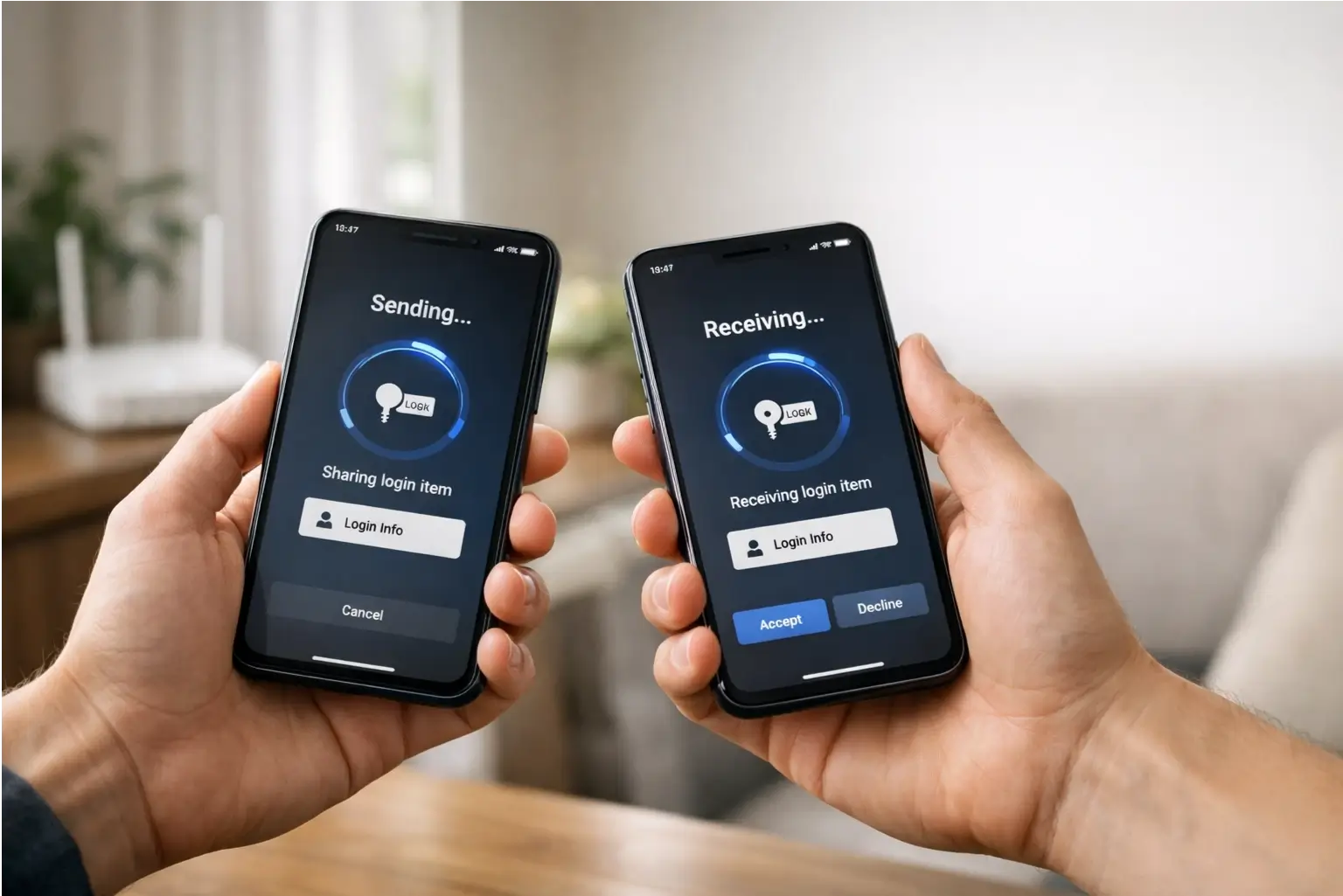
Sharing passwords used to mean texting someone a password and hoping for the best. The Passwords app changes that with two proper methods: Shared Groups for ongoing access, and AirDrop for quick one-off sharing.
Both are more controlled and more secure than sending a password in a message.
Shared Groups
A Shared Group is a named collection of logins that multiple people can access. You create the group, give it a name, add people from your contacts, and move specific credentials into it. Everyone added to the group can view and use those logins.
The person who creates the group is the owner. Owners can remove members at any time. Group members can also add their own credentials to the group, so sharing works both ways, not just from creator to recipient.
One important requirement: everyone in the group needs to be running a compatible version of iOS, iPadOS, or macOS. If someone hasn’t updated, shared items won’t show up on their device. That’s a common source of confusion, not a bug, just a compatibility gap.
Safe Sharing Rules
Shared Groups are useful, but they come with real responsibility. Here’s what we’d suggest before adding anyone.
Only share what’s necessary. If your family needs access to a streaming service, don’t put your email login or banking credentials in the same group. Keep financial accounts completely separate, as there’s no reason they should ever be in a shared group.
Create different groups for different people. A household group is different from temporary access for a friend. Keeping them separate means you can remove one person without disrupting everyone else’s access.
Review who’s in your groups every few months. People change, situations change, and access you granted a while ago might no longer make sense.
Share One Item in Person with AirDrop
If you just need to share one password with someone standing next to you, AirDrop is faster than setting up a group. Find the login in the app, tap share, and send it directly to their device. No group. No ongoing access. Done.
This works well for situations like handing someone a login for a one-time task, without giving them permanent access to anything.
Sharing Wi-Fi Passwords Without Saying the Password
The Passwords app stores Wi-Fi passwords too. If a guest asks for your home Wi-Fi, you can share it directly from the app to their device via AirDrop. Neither of you needs to see the actual password on screen. It just transfers across.
This is genuinely handy for anyone who’s ever had to read out a 20-character router password one letter at a time.
Verification Codes and Two-Factor Authentication
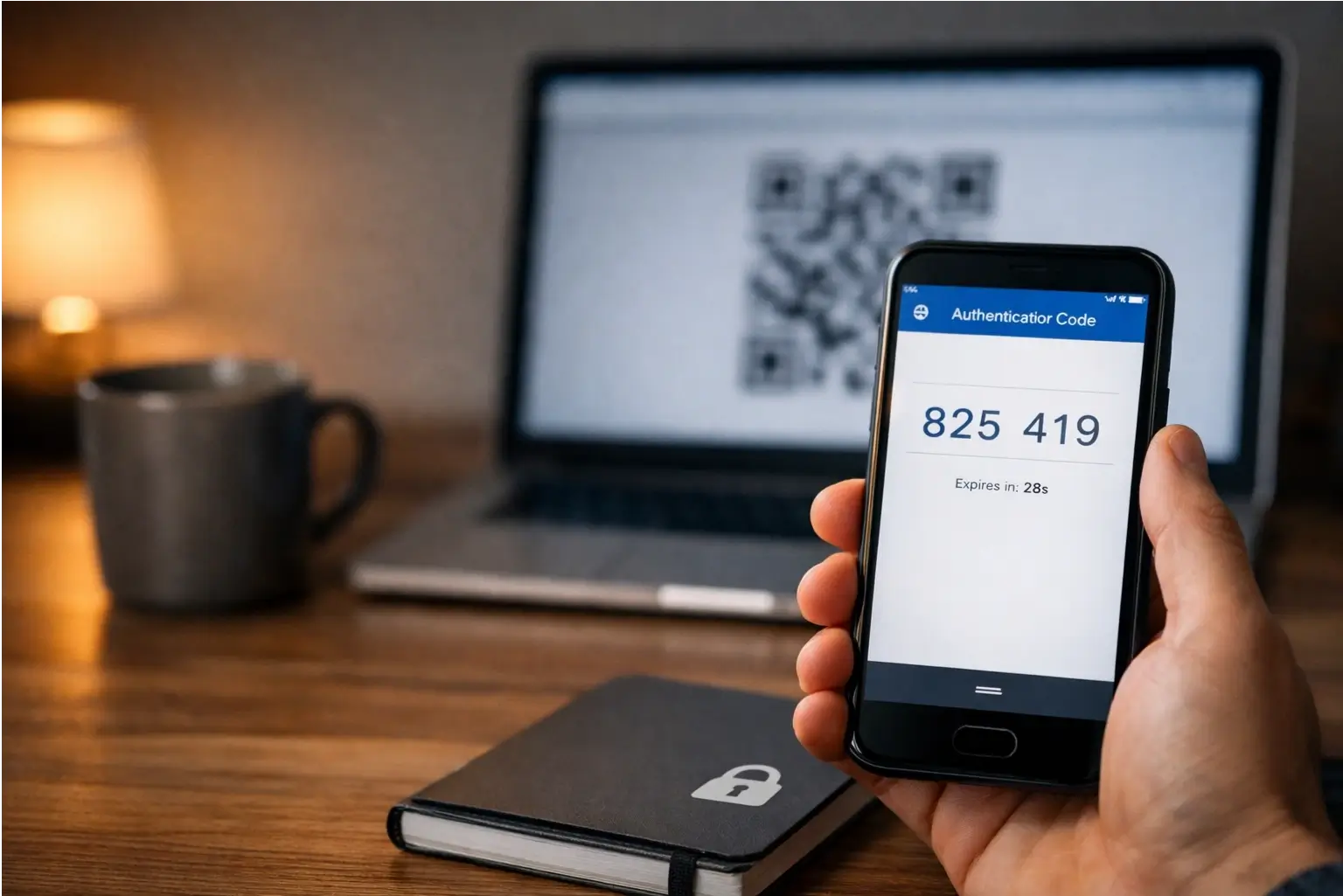
Two-factor authentication (2FA) adds a second check after you enter your password. A site sends you a short code, usually six digits, and you enter it to confirm it’s really you. Some people know this as multi-factor authentication (MFA), or a one-time code.
Until now, you needed a separate app to generate these codes. The Passwords app handles it directly.
How to Set Up Verification Codes
To add a verification code to a saved login, open the Passwords app and find the entry for that site. Tap “Set Up Verification Code.” The app will ask you to either scan a QR code shown on the site’s security settings page, or type in a setup key manually.
Once it’s set up, the app generates a fresh code every 30 seconds using a standard time-based one-time password (TOTP) system. When you log into that site, the code AutoFills automatically during login. You don’t need to switch apps or copy anything.
Everything stays in one place: your login, your password, and your 2FA code. That’s simpler and less prone to the kind of mistakes that come with juggling multiple apps.
Security and Privacy
The Passwords app syncs via iCloud Keychain using end-to-end encryption. That means only your approved devices can read your stored data. Apple can’t access your passwords, and neither can anyone who intercepts the sync traffic.
The app also actively monitors your saved passwords against known data breach databases and flags anything that looks risky.
Security Warnings Explained
The app raises three types of alerts, and each one means something specific.
A “weak password” warning means the password is too short or predictable and could be guessed with basic tools. A “reused password” warning means you’ve used the same password across multiple sites, which is dangerous because one hacked site can expose every other account sharing that password. A “compromised password” warning means your exact password has appeared in a known public data breach.
Each warning links directly to the site so you can update the password immediately. These warnings aren’t filler. Act on them.
Network Vulnerability and Fix
There’s a real security issue worth knowing about, stated plainly. Before iOS 18.2, the Passwords app sent some network requests over HTTP instead of HTTPS. HTTP traffic isn’t encrypted, which means someone on the same network could potentially intercept it.
Apple fixed this with the iOS 18.2 and iPadOS 18.2 update. If your device is still on an older version, update it now. And regardless of your software version, avoid using any sensitive app on public Wi-Fi without a VPN. That’s good practice across the board, not just for this app.
Setup Checklist
For the Passwords app to work properly across all your Apple devices, three things need to be active.
First, turn on iCloud Keychain. Go to Settings > your name > iCloud > Passwords and Keychain, then toggle it on. Second, turn on Password AutoFill. Go to Settings > General > AutoFill & Passwords, and make sure the Passwords option is selected. Third, confirm that Face ID, Touch ID, or a passcode is set up on your device. The app requires one of these to verify your identity before showing any stored data.
Once those three are set, the app works automatically and syncs in the background.
Using It on Windows
If you also use a Windows PC, you’re not locked out. Install iCloud for Windows from the Microsoft Store. Once installed, enable the iCloud Passwords extension inside Chrome or Edge. Your saved Apple passwords will be available in those browsers, and AutoFill works the same way it does on your iPhone.
It’s not perfect, as you won’t get every feature available on Apple devices, but it covers the basics for people who move between operating systems.
Troubleshooting
A saved password or passkey that suddenly isn’t there is one of the more stressful tech moments. Before assuming it’s gone, work through a short checklist.
I Can’t Find a Password or Passkey I Saved
If a saved password or passkey isn’t appearing, check four things: make sure you’re in “All” view rather than a specific group view, check the Deleted folder where items stay for 30 days before permanent removal, confirm iCloud Keychain is switched on, and check that the device you’re looking on is running a compatible version of the software.
If you’re in a Shared Group view, you’ll only see items assigned to that group. Switch to “All” to see everything across all groups and personal logins. If you deleted something by accident, open the Deleted section inside the app. You have a 30-day window to recover it.
If iCloud Keychain is off on a specific device, that device won’t receive synced data from your other devices. Check each device separately if something appears on one but not another.
Frequently Asked Questions
What is Apple’s Passwords app in iOS 18?
It’s a built-in password manager that stores passwords, passkeys, Wi-Fi passwords, and verification codes in a single dedicated app. It comes with iOS 18 and syncs across your Apple devices via iCloud Keychain.
Is the Passwords app the same as iCloud Keychain?
No. iCloud Keychain is the sync system that’s always existed behind the scenes. The Passwords app is the new dedicated interface that sits on top of it, making your saved items much easier to find and manage.
Which devices support the Passwords app?
It works on devices running iOS 18, iPadOS 18, macOS Sequoia, and visionOS 2. You can also access it on Windows via iCloud for Windows with the Chrome or Edge browser extension.
Does Apple Passwords store passkeys?
Yes. Passkeys appear in their own dedicated section within the app, alongside your regular passwords.
Are passkeys safer than passwords?
Generally, yes. Passkeys use Face ID or Touch ID for authentication and are tied to the specific site they were created for. They can’t be used on fake or phishing sites, which removes one of the most common ways accounts get compromised.
How do I share passwords with family using Shared Groups?
Open the Passwords app, create a new Shared Group, give it a name, add people from your contacts, then move the specific logins you want to share into that group.
Can I share a single password quickly without creating a group?
Yes. Find the login in the app and use AirDrop to send it directly to someone nearby. No group setup needed.
Can I share Wi-Fi passwords without reading them out?
Yes. The app stores Wi-Fi passwords and lets you share them via AirDrop. The password transfers without either person seeing it on screen.
Does Apple Passwords generate 2FA verification codes?
Yes. You can add a verification code to any saved login for sites that support 2FA. The app AutoFills the code during login, so you don’t need a separate authenticator app.
Why can’t I see a shared password on my other device?
Most likely, iCloud Keychain is turned off on that device, or the device isn’t running a compatible version of the software. Both need to be in place for shared items to appear.
Where do deleted passwords go and can I recover them?
Deleted items move to a Deleted folder inside the app. You have 30 days to recover them before they’re permanently removed.
How do I use Apple Passwords on Windows?
Install iCloud for Windows from the Microsoft Store, then enable the iCloud Passwords extension in Chrome or Edge. Your saved passwords will be accessible in those browsers.
Is Apple Passwords secure on public Wi-Fi?
Since iOS 18.2, the app uses HTTPS for network requests, meaning traffic is encrypted. That said, using any sensitive app on public Wi-Fi without a VPN is a risk worth avoiding as a general habit.
Can I import passwords from 1Password or LastPass?
It depends on your version. Import support has varied, particularly in early iOS 18 releases. The import option is more consistent on macOS than iOS. Check the current version of your app for available import tools before expecting a seamless transfer.
What should I do if I’m locked out after switching phones?
Make sure iCloud Keychain is turned on and you’re signed into the same Apple ID on your new device.








[…] Apple Passwords App: What It Changes for Passkeys and Sharing […]
[…] Apple Passwords App: What It Changes for Passkeys and Sharing […]
[…] one needs quick action. Change the password for the account you entered, on the actual site directly, not through any link. If you use that […]
[…] Delete any suspicious email mentioning it. If you already clicked a link before reading this, change your account passwords now and check for unusual login […]
[…] Some attacks also abuse OAuth flows to get tokens. That can happen even when the victim never shares a password. […]
[…] Change passwords if you interacted. Focus on email, banking, shopping, and social accounts first. […]