




Passkeys 101 (Only the Parts That Cause Lockouts)
Tech keeps changing. And each time it does, you’re expected to keep up, trust the right advice, and make smart decisions, often without a proper explanation of what’s actually going on.
Passkeys are one of those things. You’ve probably seen the prompt: “Create a passkey for faster, more secure sign-in.” You tapped yes. And now you’re not entirely sure what you agreed to, where it lives, or what happens if you lose your phone tomorrow.
That’s a reasonable place to be. There’s a lot of noise around passkeys right now, and most of it doesn’t help you understand the real risks. This page won’t oversell them or drown you in jargon. What it will do is give you clear, practical, fact-based guidance: what passkeys are, where they’re stored, and the specific scenarios that cause lockouts, with a fix for each one. No hype. Just the parts that matter.
What a Passkey Is (in One Minute)
A passkey is a passwordless login method. Instead of typing a password, your device confirms who you are using biometric authentication, like Face ID, Touch ID, or a fingerprint scan, or a screen lock like a PIN or pattern. The website receives a cryptographic proof of identity, not a password.
Password reuse is one of the biggest drivers of account breaches. When the same password appears across multiple sites, one data breach can open up dozens of accounts to credential theft. Passkeys sidestep that entirely. There’s nothing to guess, steal, or reuse.
It’s also worth knowing that a passkey doesn’t replace your device security. It depends on it. If someone can get past your screen lock, they can use your passkeys.
The 2-Key Explanation (Why It’s Phishing-Resistant)
When you create a passkey, your device generates a cryptographic key pair: a public key and a private key. The public key goes to the website’s server. The private key stays on your device and never leaves it.
At sign-in, the website sends a challenge, a unique piece of data. Your device signs it with the private key and returns the signature verification. The website checks that signature against the stored public key. If it matches, you’re in.
Because the server stores only the public key, a data breach at the website exposes nothing useful to an attacker. There’s no shared secret to steal. This is why passkeys are phishing-resistant: your private key is bound to the real domain, so a fake version of a site won’t trigger your device to sign anything.
The standard behind all of this is FIDO2, developed by the FIDO Alliance. FIDO2 combines WebAuthn (a W3C web standard for browser-based authentication) and CTAP (Client to Authenticator Protocol, which handles device-level communication). You don’t need to know every detail, but these names are worth recognising when reading account security pages or support documentation.
Where Passkeys Are Stored (This Is Where Lockouts Start)
Most people assume passkeys live on the website. They don’t. Your passkeys are stored on your device, or more precisely, in a password manager tied to your device ecosystem. This one detail is the root cause of nearly every lockout scenario covered below.
Apple: iCloud Keychain Basics
On iPhone, iPad, and Mac, passkeys are stored in iCloud Keychain. It’s end-to-end encrypted, which means Apple cannot read the contents. Your passkeys sync automatically across all your Apple devices.
To use iCloud Keychain, two-factor authentication must be turned on for your Apple Account. That’s a hard requirement, not an optional setting, and it’s part of what keeps the system secure.
You can also sign in on non-Apple devices (a Windows laptop, for example) using an iPhone as the authenticator. The laptop shows a QR code, you scan it with your phone, and Bluetooth confirms your phone is physically nearby. More on exactly how this can break is covered below.
Google: Password Manager and Android/Chrome
On Android, passkeys are stored in Google Password Manager by default. They sync across Android devices and Chrome on any platform, including Windows and Mac. Starting with Android 14, you can also store passkeys in a third-party manager like 1Password or Bitwarden.
Chrome on Windows or Mac can create and store passkeys via Google Password Manager too. If you’re signed into Chrome and create a passkey on a website, that passkey goes into your Google account, not your Windows Hello vault, unless you chose otherwise. Knowing where your passkeys actually live is the first step to knowing where to look when things go wrong.
The Portability Gap (Import/Export and Switching Managers)
This is an area the industry is still working through. Apple now supports import and export of passkeys, which is a meaningful step forward for password manager portability. But not every platform handles this consistently yet.
If you switch from Google Password Manager to a third-party manager, or from iCloud Keychain to something else, your passkeys may not transfer cleanly. Some passkeys may need to be recreated from scratch in the new manager.
Before switching, check whether your new manager supports passkey import. If it doesn’t, make a list of every account where you have a passkey and re-register them after the move.
The 7 Lockout Scenarios (and the Fix for Each)
This is the section most passkey guides skip. Here’s what actually causes lockouts and exactly what to do about each one.
Scenario 1: You Lost Your Phone (But Still Have Another Trusted Device)
You’re not locked out yet. Because iCloud Keychain and Google Password Manager sync passkeys across devices, any other trusted device you own, a tablet, laptop, or second phone, should already have your passkeys available.
The fix: Revoke the passkey registered to the lost device immediately. Manage passkeys through your account security settings on each affected site, or go directly to myaccount.google.com (Google) or appleid.apple.com (Apple). Remove any device you no longer control. This stops anyone who finds your phone from using your passkeys, assuming they can’t get past your screen lock.
Scenario 2: You Lost ALL Devices (The Real Nightmare Scenario)
If every trusted device is gone, your path back depends entirely on the recovery setup you did beforehand. For Apple users, iCloud Keychain has an escrow recovery process. You can get back in via a trusted phone number, a verification code, or an account recovery contact: a person you designated in advance.
The fix: For Apple, use your trusted phone number, verification code, or a pre-set recovery contact. If none of those are configured, expect to contact Apple Support directly. For Google, account recovery runs through a trusted phone number, backup email, or a trusted contact. The hard truth is that your recovery options are only as useful as the setup you completed before things went wrong.
Scenario 3: You Can’t Unlock Your Device (Face ID Fails / Forgotten PIN)
Your device passcode or screen lock is the master switch for passkeys. If you can’t get past it, you can’t use them on any platform.
The fix: Apple limits the number of passcode attempts during iCloud Keychain recovery. After 10 failed attempts, the recovery record can lock or the encrypted data can be destroyed. That’s a deliberate security protection, not a glitch, so repeated guessing will make things worse. If Face ID or Touch ID fails, try your PIN. If you’ve forgotten your PIN, device recovery, which usually means erasing the device, is the only path forward.
Scenario 4: Android-to-Android Transfer Fails (Old PIN/Pattern Required)
When moving to a new Android phone, the transfer process may ask for the screen lock PIN or pattern from your old device, not the new one. Android uses the old screen lock to decrypt the secure backup.
The fix: If you’ve forgotten the old device PIN, the backup won’t restore properly. Passkeys tied to that local backup may not transfer. In that case, passkeys stored in Google Password Manager’s cloud sync should still be available on the new device, if cloud sync was active. Local backup and cloud sync are two different things. Knowing which one you relied on changes the fix.
Scenario 5: Desktop Login Fails (“I Have a Passkey But My Laptop Won’t Show It”)
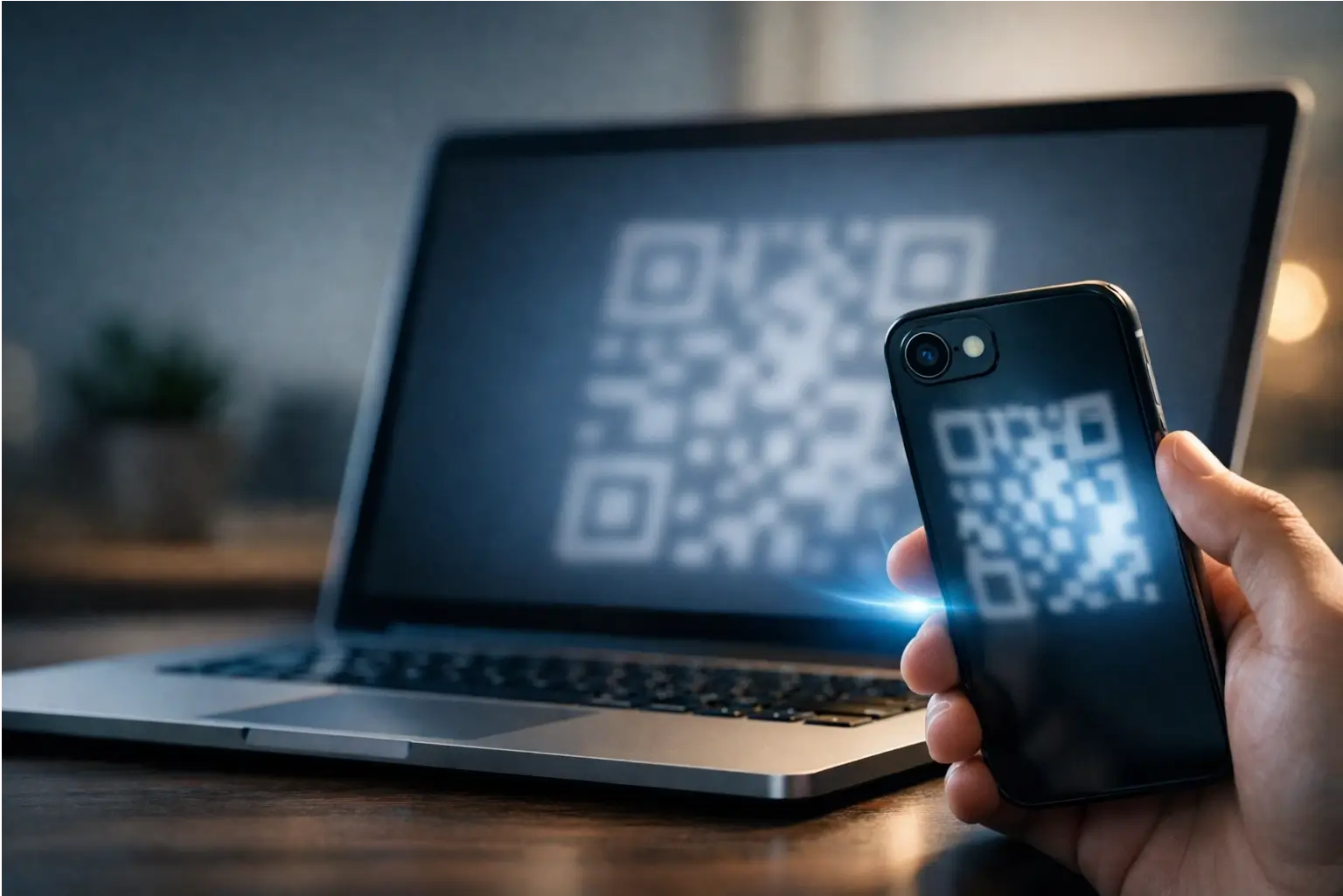
This is one of the most common and least explained issues. When you use a passkey stored on your phone to sign in on a laptop, your phone must be physically nearby. The laptop shows a QR code, you scan it with your phone’s camera, and Bluetooth confirms the two devices are in the same room.
The fix: If Bluetooth is off on either device, or your phone screen is locked, the cross-device sign-in flow won’t complete. Your private key never leaves your phone by design, which means your phone has to be present to approve it. Turn Bluetooth on, unlock your phone, and try the QR scan again.
Scenario 6: You Changed Password Managers (Mixed Ecosystems)
If you set up passkeys in iCloud Keychain and then switched to a third-party manager, or went from Android to iPhone, your passkeys don’t move automatically. You need to handle the transfer manually.
The fix: Check whether your new manager supports passkey import before making the switch. If it doesn’t, log into each affected account and create a new passkey from scratch within the new manager. Using a cross-platform third-party manager from the start, one that works across Android, iOS, Windows, and Mac, reduces this problem significantly and avoids a single-point-of-failure situation.
Scenario 7: The Site Removed Passwords Entirely (No Fallback)
Some websites are moving to fully passwordless login. There’s no “forgot password” link, because there’s no password. If you lose your passkey for that site and have no secondary authentication method, you’re entirely dependent on whatever account recovery process the site provides.
The fix: Before removing a password from any account, check whether the site has a published support article or a clear recovery path. If it doesn’t, think carefully about going fully passwordless there. Passkeys aren’t always the only way back in, but on some platforms, the safety net is getting thin.
“Do This Now” Prevention Checklist
The best lockout is the one that never happens. Here’s the setup that matters most, before you need it.
- Turn on two-factor authentication (2FA) for your Apple or Google account.
- Add a recovery contact to your Apple Account (Settings > your name > Sign-In & Security).
- Keep your trusted phone number and backup email current on both platforms.
- Keep at least two trusted devices signed into your account.
- Set a screen lock (PIN, pattern, or biometric) on every device you use passkeys on.
- Know where your passkeys are stored: iCloud Keychain, Google Password Manager, or a third-party manager.
- Learn how to revoke passkeys from account security settings before you ever need to.
Minimal Setup for iPhone Users
- Open Settings and tap your name.
- Go to Sign-In & Security and confirm two-factor authentication is active.
- Add a recovery contact, a trusted person who can help verify your identity if you’re locked out.
- Go to Settings > your name > iCloud > Passwords and Keychain and confirm sync is turned on.
Minimal Setup for Android Users
- Visit myaccount.google.com and check that your recovery phone number and email are current.
- On Android 14 or later, go to Settings > Passwords, Passkeys & Accounts to confirm where your passkeys are being stored.
- If you’re using a third-party manager, confirm it’s set up, syncing, and backed up correctly.
A Note for Developers
The core flow is straightforward: prompt users to register a passkey at account creation (or offer it as an upgrade from a password account), store only the public key server-side, and build clear management endpoints so users can view, add, and remove their passkeys at any time.
Be specific in your interface copy about biometrics. Tell users their biometric data never leaves their device, because it doesn’t, and that the website never receives it. Users who understand this are far more likely to complete the setup. The Google Developers documentation explicitly recommends including a short FAQ or support article within your passkey flow to cut down on support tickets.
Don’t skip the account management page. Users need to see and revoke passkeys from lost devices. Without that, a lost phone stays a live risk for as long as the passkey exists on your platform.
Frequently Asked Questions
What is a passkey in simple terms?
A passkey is a way to sign into an account without a password. Your device, using your fingerprint, face, or PIN, proves it’s you. The website gets a cryptographic confirmation of your identity, not a password string. There’s nothing stored on the server that an attacker could steal to access your account.
How do passkeys work (public key vs private key)?
Your device generates two linked keys at setup: a public key sent to the website, and a private key that stays on your device only. At sign-in, the site sends a challenge, your device signs it with the private key, and the site checks the signature using the stored public key. No password changes hands at any point.
The private key never leaves your device. Even if a website’s servers are breached, there’s nothing there that gives an attacker access to your account.
Are passkeys really phishing-resistant? Why?
Yes, because the private key is bound to a specific domain. A fake version of a website can’t trigger your device to sign a login challenge because the domain won’t match. That protection doesn’t exist with passwords, which you can type into any convincing-looking fake site.
Where are passkeys stored on iPhone?
On iPhone, passkeys are stored in iCloud Keychain. The data is end-to-end encrypted and syncs across all Apple devices connected to your Apple Account. Apple cannot read the contents of your keychain.
Where are passkeys stored on Android?
By default, Android stores passkeys in Google Password Manager, which syncs across Android devices and Chrome. On Android 14 and later, you can choose a third-party manager instead. Check Settings > Passwords, Passkeys & Accounts to see your current setup.
What happens if I lose my phone with passkeys on it?
If your passkeys are synced via iCloud Keychain or Google Password Manager, they’re already on your other trusted devices. Revoke the passkey for the lost device through account security settings as quickly as possible. If it was your only device, use your pre-configured account recovery options.
Can I recover passkeys if I lose all my Apple devices?
Yes, if you’ve set up recovery options beforehand. Apple’s iCloud Keychain escrow recovery process lets you get back in via a trusted phone number, verification code, or a pre-set account recovery contact. Without any of those in place, recovery requires contacting Apple Support directly.
Why does Apple limit passcode attempts during Keychain recovery?
Apple’s 10-attempt limit during iCloud Keychain recovery is a security protection, not a bug. After repeated failures, the recovery record can lock or the encrypted data can be destroyed. It’s designed to prevent brute force attacks. If you’re locked out, stop attempting and use your account recovery contact or contact Apple Support.
Why won’t my passkey show up on my laptop or desktop?
Your passkey is stored on your phone, not your laptop. To sign in on a laptop using a phone-based passkey, your phone must be physically nearby with Bluetooth turned on. The laptop displays a QR code, you scan it, and Bluetooth confirms proximity. Without Bluetooth or a nearby phone, the cross-device sign-in flow can’t complete.
Do passkeys replace two-factor authentication (2FA)?
Not exactly. Passkeys are phishing-resistant at sign-in, which is a strong baseline protection. But 2FA is still recommended, particularly for account recovery flows and for platforms where passkeys are optional. Think of 2FA as a safety net for the account itself, not just the sign-in step.
Can someone use my passkey if they steal my phone?
Only if they can also get past your screen lock. Biometric authentication or your device PIN is required to activate a passkey. A strong screen lock makes a stolen phone considerably less useful to an attacker. That said, if someone knows your PIN, they can use your passkeys, so don’t share it.
Are passkeys stored on the website’s servers?
Only the public key is stored on the server. The private key, the part that actually signs you in, never leaves your device. This means a data breach at a website doesn’t give attackers anything useful for accessing your account via your passkey.
What’s the difference between passkeys and a password manager?
A password manager stores and fills in passwords on your behalf. A passkey replaces the password entirely. Some password managers (like 1Password, Bitwarden, or Google Password Manager) can now also store passkeys, but the authentication method itself is completely different from a stored password.
Can I export or import passkeys to another manager?
Apple supports passkey import and export, and a growing number of third-party managers are adding this too. But it’s not universal yet. Always check import/export support for both your old and new manager before switching, or plan to recreate passkeys manually on the new platform.
What is FIDO2/WebAuthn and why does it matter?
FIDO2 is the technical standard passkeys are built on, developed by the FIDO Alliance. WebAuthn is the W3C web component of that standard; it defines how browsers handle passkey sign-ins. CTAP handles communication between your browser and the authenticating device. These standards mean passkeys work consistently across different browsers and operating systems, not just within one company’s ecosystem.
Do passkeys work without biometrics?
Yes. If biometrics aren’t available or set up, passkeys fall back to your device PIN or screen lock pattern. The biometric data itself never leaves your device and is never sent to the website. Your device simply uses it locally to confirm it’s really you before signing the authentication challenge.








No Comment! Be the first one.