




The Two Keys Rule: Backup Strategy for Passwordless Accounts
Tech rarely slows down to explain itself. One week you’re told passwords are fine, the next week you’re being pushed toward passkeys, and nobody’s clearly explaining what happens when something goes wrong. That feeling of “I don’t fully trust this yet” is completely fair.
Table Of Content
- What Are Passkeys, and Why Do They Matter?
- Why Does Losing Your Device Lock You Out?
- The Two Keys Rule: Your Anti-Lockout System
- Key 1: Synced Passkeys (Your Everyday Safety Net)
- Key 2: An Independent Recovery Path
- Setup Checklist: 15 Minutes, Done Properly
- Step 1: Turn On Passkey Sync and Verify It
- Step 2: Register Two Devices Per Critical Account
- Step 3: Add a Security Key as a Cold Spare
- Step 4: Record Your Recovery Routes
- The Biggest Mistake: Leaving the Back Door Open
- What Should You Do With Your Old Password?
- Switching Phones Without Panic
- Same Ecosystem Upgrade
- Lost or Stolen Phone
- Can You Move Passkeys from Android to iPhone (or Back)?
- For Teams and Enterprises
- Fallback Flows and Help Desk Planning
- Testing Before a Full Rollout
- Maintain and Test Your Backup Strategy
- A Simple Monthly Schedule
- Your Security Readiness Kit
- Frequently Asked Questions
- What happens to my passkeys if I lose my phone?
- Do passkeys sync across devices automatically?
- Can I transfer passkeys from iPhone to Android (or vice versa)?
- Should I keep my password as a backup if I use passkeys?
- What’s the best offline backup for passkeys?
- How often should I test my backup and recovery plan?
- What if my passkeys stop working on a site or browser?
I’ve spoken to a lot of people who are curious about passkeys but stuck on one question: what if I lose my phone? They’re not being dramatic. Device loss is a real, practical problem, and most guides either skip it or bury it in technical language that requires a computer science degree to follow.
What I want to give you here is a clear, honest system. No hype, no jargon without an explanation, no advice that leaves you worse off than when you started. Just a practical backup strategy for passwordless accounts that actually holds up in real life.
What Are Passkeys, and Why Do They Matter?
Passkeys are a login method that replaces your password with a cryptographic key pair stored on your device. Instead of typing a password, you use your fingerprint, face, or PIN to prove who you are. They’re phishing-resistant, which means fake login pages can’t steal them the way they steal passwords.
Here’s a simpler way to picture it. When you create a passkey, two keys are generated: a public key stored on the website’s servers, and a private key stored on your device. The website sends your device a challenge, your device signs it with the private key, and the login is approved.
The private key never leaves your device. There’s no shared secret travelling across the internet, which means there’s nothing to intercept mid-transmission. This process is the foundation of WebAuthn and FIDO2, the open standards that most passkey systems are built on today.
Why Does Losing Your Device Lock You Out?
Because your private key lives on your device. If your phone is lost, stolen, or broken, and the private key isn’t backed up or synced anywhere else, you can’t prove who you are. The website holds the public key; without the matching private key, you’re locked out.
This is the core risk that most passkey guides don’t address clearly enough. Device loss is the number one lockout risk with passwordless authentication, and it’s the reason a backup strategy isn’t optional. Without one, a single lost phone can cost you access to critical accounts.
The Two Keys Rule: Your Anti-Lockout System
The Two Keys Rule is a simple principle. Always have two independent ways to get back into your accounts when something goes wrong. Think of it like keeping a spare house key. You don’t wait until you’re locked out to get one cut. Here’s how the system works.
Key 1: Synced Passkeys (Your Everyday Safety Net)
Synced passkeys are your first line of defence. If you use Apple devices, iCloud Keychain syncs your passkeys automatically across all devices connected to your Apple ID. If you use Android, Google Password Manager does the same thing across the Google ecosystem.
Sign into your account on a new phone, and your passkeys restore without extra steps.
Third-party password managers like Bitwarden also support passkey storage and cross-device sync. Bitwarden’s vault export and backup features are worth knowing about, particularly if you don’t want to be tied to a single platform. If you use a mix of Apple, Android, and Windows devices, a third-party manager gives you a lot more flexibility.
Cloud sync is a solid safety net. But it only works if it’s set up before something goes wrong.
Key 2: An Independent Recovery Path
The second key is a completely separate way to get back in. This is where most people stop short, and it’s the most important part of this whole system.
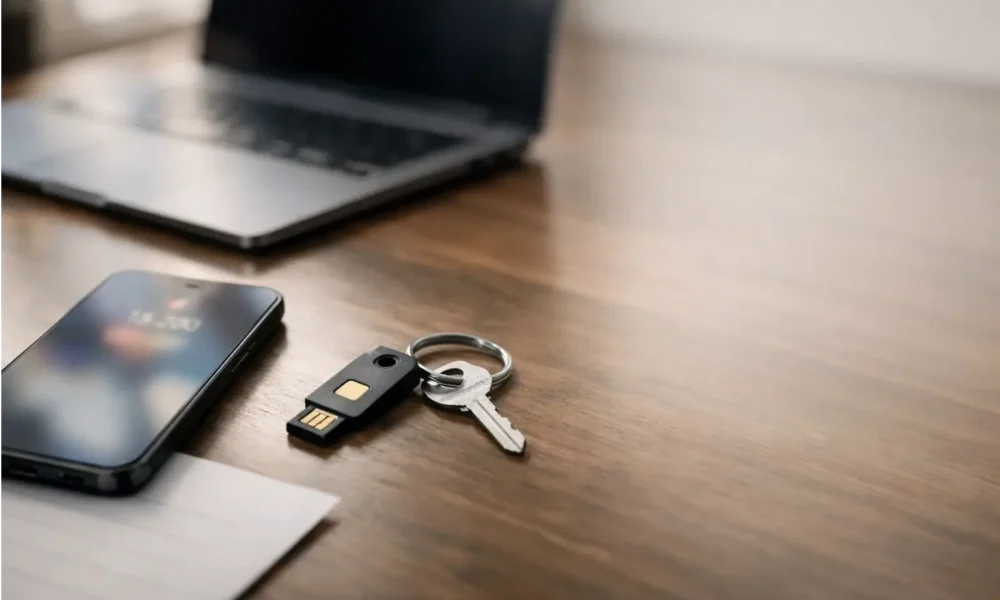
For critical accounts, a physical FIDO2 security key is the strongest option. These small hardware tokens connect to your device via USB-C, Lightning, or NFC. YubiKey and Google Titan are the most widely used options.
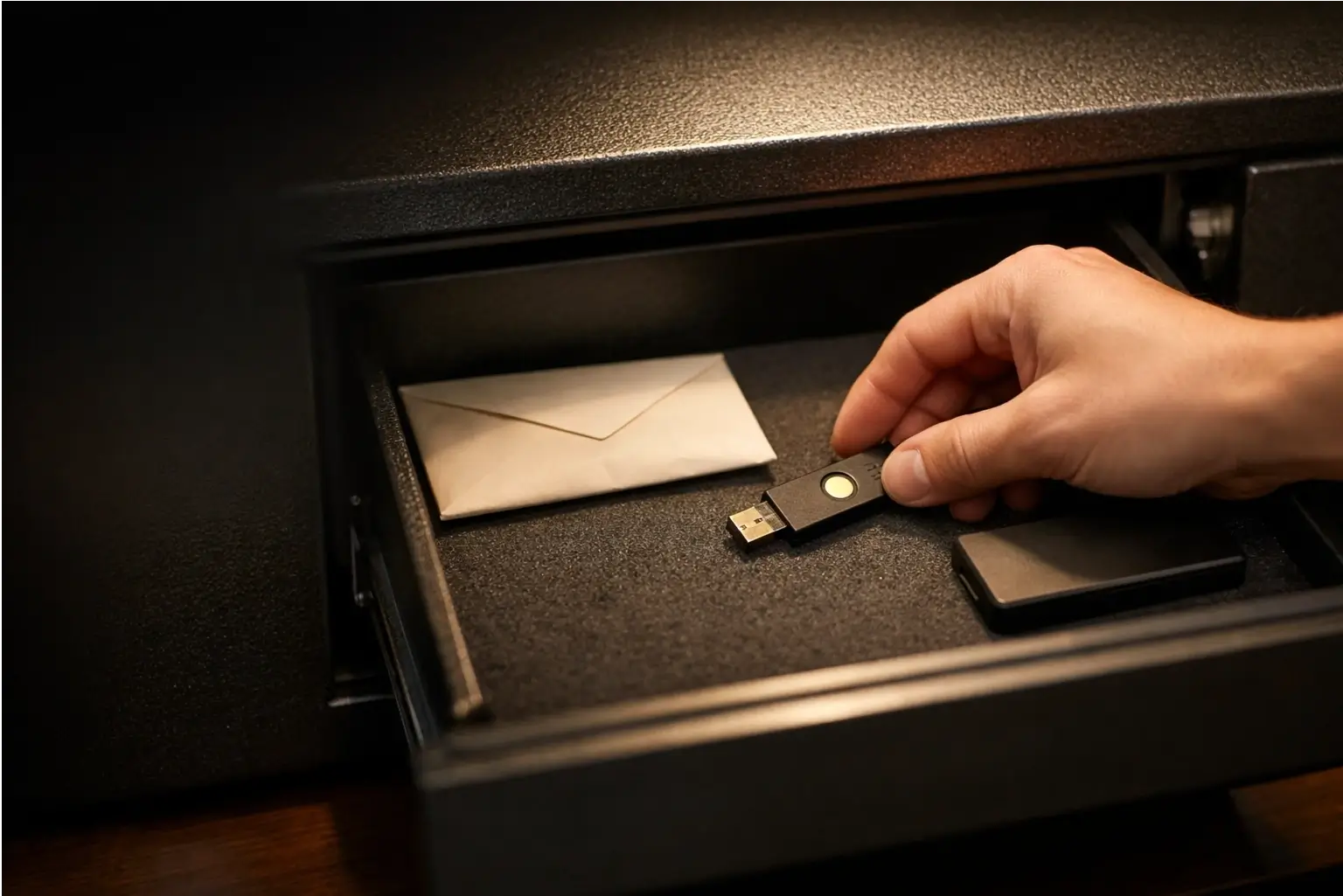
A basic security key costs around $30. You register it as a backup option on your account and store it somewhere safe, ideally a fireproof safe or a secure drawer at home.
The second option is an offline encrypted backup. Some password managers let you export your passkey data to an encrypted file, which you store on an offline drive. It’s less convenient than a hardware key, but it puts full control in your hands.
The key thing is that Key 2 must be independent of Key 1. If your phone and your backup both live inside the same ecosystem and that ecosystem has a problem, you’re still stuck.
Setup Checklist: 15 Minutes, Done Properly
Most people can get this set up in about 15 minutes. Here’s how.
Step 1: Turn On Passkey Sync and Verify It
On iPhone, go to Settings, tap your name, select iCloud, and confirm that Passwords and Keychain is switched on. On Android, go to Settings, search for Passwords, and check that Google Password Manager sync is active. Once it’s on, test it by creating a passkey on one device and confirming it appears on another.
Step 2: Register Two Devices Per Critical Account
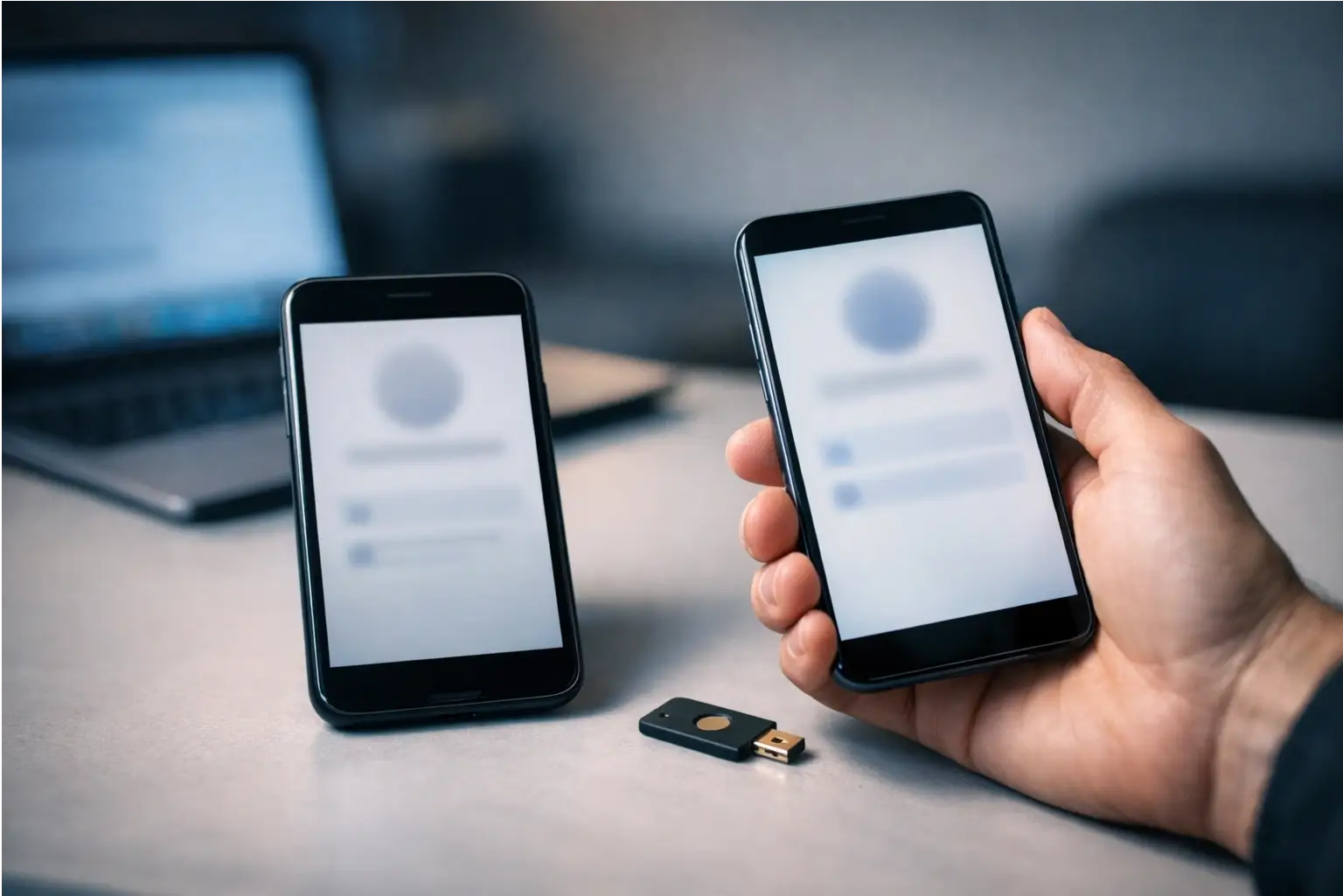
For accounts that matter most, including banking, email, and work logins, register at least two devices as passkey-enabled. A phone and a laptop or tablet is a practical combination. If one device breaks, you can still sign in from the other.
Step 3: Add a Security Key as a Cold Spare
For your most sensitive accounts, add a FIDO2 security key as a registered backup option. Most major platforms support hardware security keys, including Google, Apple ID, Microsoft, and GitHub. If your accounts hold particularly sensitive data, consider buying two keys and storing them in separate locations.
Step 4: Record Your Recovery Routes
Write down the recovery routes for each critical account, either on paper or in a secure note inside your password manager. Include backup email addresses, phone numbers linked to one-time SMS codes, and any recovery contact you’ve added. Apple’s recovery contact feature, for example, lets a trusted person help you regain access to your iCloud Keychain through Apple’s escrow recovery system if you’re completely locked out.
The Biggest Mistake: Leaving the Back Door Open
If you set up passkeys but leave an old, weak password on the same account, that password is still a working way in. Attackers know this. A passkey is only as strong as your weakest fallback.
What Should You Do With Your Old Password?
If a site lets you remove the password entirely, do it. If you can’t remove it, upgrade it to a long, random password stored in your password manager and add two-factor authentication (2FA) as well. Never leave a short or reused password sitting behind your passkey as a fallback.
The risk is real. If your backup password is still enabled and it’s weak, credential theft is still possible through that route. Passkeys don’t protect you from a breach of a password you haven’t updated in years.
Also check your recovery settings. An old, rarely used recovery email is a weak point you might not notice until it’s too late.
Switching Phones Without Panic
Same Ecosystem Upgrade
If you’re staying within the same ecosystem, for example iPhone to iPhone or Android to Android, this is the simplest case. Sign into your Apple ID or Google account on the new device. Your passkeys restore automatically through iCloud Keychain or Google Password Manager.
Test a few key logins before you factory reset the old device, then revoke the old passkeys in your account settings.
Lost or Stolen Phone
Act quickly. Use Find My (Apple) or Find My Device (Google) to remotely wipe the stolen device. Then sign into your accounts using Key 2, either your hardware security key or a second registered device.
Once you’re in, remove the old device’s passkeys from your account settings and register new ones on your replacement phone.
Can You Move Passkeys from Android to iPhone (or Back)?
Moving passkeys between ecosystems is the trickiest scenario right now. Passkeys stored in iCloud Keychain don’t transfer to Android, and vice versa. The workaround is to use QR code sign-in on your old device to authenticate, then create new passkeys on your new device, and delete the old ones from each account.
The cleaner long-term solution is to use a third-party password manager like Bitwarden from the start. Because your passkeys sit in a vault you control rather than inside Apple’s or Google’s system, cross-platform transfer stops being a problem. This is the most practical way to avoid ecosystem lock-in entirely.
For Teams and Enterprises
If you’re rolling out passwordless authentication across an organisation, the Two Keys Rule still applies. The process just scales up.
Fallback Flows and Help Desk Planning
The biggest risk in enterprise rollouts isn’t the technology. It’s what happens when someone calls the help desk and says they can’t log in. Without a documented fallback flow, staff revert to weak passwords out of frustration.
MDM (Mobile Device Management) and IAM (Identity and Access Management) tools let you remotely deprovision lost devices and manage passkey registration from a central admin panel. Define your lockout handling process before you go live, not after.
Testing Before a Full Rollout
Start with a pilot group. Track success rate, support ticket volume, and where people get stuck. User training should cover what to do when something goes wrong, not just how to log in on a good day.
Recovery contacts, backup sign-in methods, and help desk escalation paths should all be documented and tested before any wider rollout begins.
Maintain and Test Your Backup Strategy
Setting this up once isn’t enough. Backups you’ve never tested are backups you can’t trust.
A Simple Monthly Schedule
Once a month, pick one critical account and test your recovery path. Try logging in using your security key. Check that your synced passkeys still appear on all registered devices.
If you use an encrypted offline backup, confirm the file is still accessible. This takes around ten minutes and saves hours of panic when something actually goes wrong.
Your Security Readiness Kit
Keep a simple document, either printed or stored securely offline, that lists your critical accounts, which devices are registered for each, where your security key is stored, and what your recovery steps are. This is your personal security readiness kit. Update it every time something changes: when you get a new device, lose an old one, or update a recovery email address.
Frequently Asked Questions
What happens to my passkeys if I lose my phone?
If your passkeys are synced via iCloud Keychain or Google Password Manager, they restore automatically on a new device when you sign in with the same account. If they’re not synced, you’ll need to use a second registered device, a hardware security key, or an account recovery method to regain access.
Do passkeys sync across devices automatically?
Within Apple’s ecosystem, iCloud Keychain handles this automatically. Google Password Manager does the same for Android devices. Sync only works between devices signed into the same account.
A third-party manager like Bitwarden, secured by a master password, gives you cross-platform sync if you use a mix of Apple, Android, and Windows devices.
Can I transfer passkeys from iPhone to Android (or vice versa)?
Not directly. Platform passkeys don’t move between ecosystems. The practical approach is to use QR code sign-in on your old device to authenticate, create new passkeys on the new device, and remove the old ones from each account.
Using a cross-platform password manager from the start avoids this problem entirely.
Should I keep my password as a backup if I use passkeys?
Only if you make it strong and store it in a password manager. A weak backup password sitting behind a passkey is a security risk, not a safety net. If the site allows it, remove the password entirely. If not, use a long, random password and pair it with 2FA.
What’s the best offline backup for passkeys?
A registered FIDO2 hardware security key is the most reliable offline backup for critical accounts. It doesn’t rely on an internet connection and it’s widely supported across major platforms. An encrypted vault export from a password manager is a useful secondary layer for anyone who wants an extra fallback in place.
How often should I test my backup and recovery plan?
Once a month is a reasonable schedule for most people. For high-value accounts like banking and primary email, test more often, and always run a test after any major change, like getting a new device or updating your account recovery settings.
What if my passkeys stop working on a site or browser?
This occasionally happens due to browser updates or changes on the site’s side. Check that your browser supports WebAuthn, that your passkey sync is still active, and that you haven’t been signed out of the platform syncing your passkeys. If the passkey is genuinely broken, use your backup sign-in method, then re-register a new passkey on that account.








[…] The Two Keys Rule: Backup Strategy for Passwordless Accounts […]
[…] key is to read the rules carefully. Assistance can come with income limits, location limits, and occupancy […]