




Switching Phones with Passkeys: A No-Panic Checklist
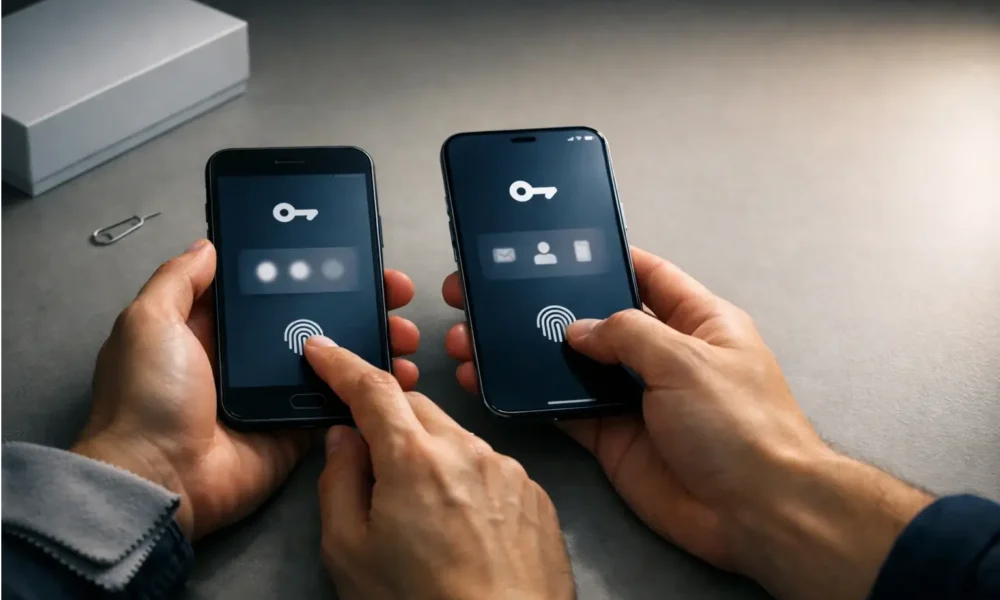
Getting a new phone should feel good. But somewhere between the excitement and the setup screen, the questions start piling up. What happens to your passkeys? Will they transfer automatically? What if you can’t get into your accounts on the new phone?
Table Of Content
- Quick Answer: Will My Passkeys Move Automatically?
- If Your Passkeys Are in iCloud Keychain (iPhone to iPhone)
- If Your Passkeys Are in Google Password Manager (Android and Chrome)
- If You’re Crossing Ecosystems (iPhone to Android or Android to iPhone)
- Before You Switch (10 Minutes): The Anti-Lockout Checklist
- Confirm Your Passkeys Are Syncing
- Set Recovery Options Before Anything Goes Wrong
- Do a Quick Test Login
- Switching Scenarios: Pick Yours
- Android to Android (Same Google Account)
- iPhone to iPhone (Same Apple Account)
- Android to iPhone and iPhone to Android: What Actually Happens
- If You Still Have Your Old Phone: The Fastest Path
- Use QR-Code Approval When Offered
- Verify First, Then Remove the Old Device Safely
- If You Don’t Have Your Old Phone (Lost, Stolen, or Already Wiped)
- Apple Recovery Path
- Google Recovery Path
- Worst Case: Recreate Passkeys Per Site
- Security Notes: Why These Steps Matter
- Encryption and Device Approval (Apple vs Google)
- Portability Is Getting Better (FIDO CXP and CXF)
- Troubleshooting: Quick Fixes
- Frequently Asked Questions
- Can you transfer passkeys to a new phone without the old phone?
- Where are my passkeys stored: iCloud Keychain or Google Password Manager?
- Why am I being asked for a Google Password Manager PIN on a new device?
- What if I’m moving from iPhone to Android? Will my passkeys come with me?
- Is Google Password Manager passkey sync end-to-end encrypted?
- Are passkeys safer than passwords when switching devices?
- When will passkeys be easier to move between providers?
These are the kinds of questions that don’t come with simple answers in most tech guides. The advice out there is often split across a dozen different sources, buried in jargon, or only covers half the picture. We know that’s frustrating. So we’ve pulled everything together here, written plainly, so you can get on with using your new phone instead of worrying about it.
Passkeys are a newer form of passwordless login. Instead of typing a password, you sign in with your fingerprint, face, or device PIN. They’re phishing-resistant, faster to use, and much harder for attackers to steal than traditional passwords. But how they move to a new phone depends on one key thing: where they’re stored.
Quick Answer: Will My Passkeys Move Automatically?
It depends on where your passkeys are saved. If they’re in iCloud Keychain, they sync to a new iPhone automatically via your Apple Account. If they’re in Google Password Manager, they sync across Android and Chrome once you sign in. But you’ll need your GPM PIN or Android screen lock to access them on a new device.
Where your passkeys live determines how the transfer works. Think of it like this: your passkeys don’t float freely in the cloud. They sit inside a specific storage system, either Apple’s iCloud Keychain or Google Password Manager, tied to your account and protected by encryption. Switch operating systems, and those passkeys won’t automatically follow you across.
If Your Passkeys Are in iCloud Keychain (iPhone to iPhone)
iCloud Keychain is Apple’s built-in system for storing passkeys and passwords. When you sign into your Apple Account on a new iPhone with iCloud Keychain switched on, your passkeys sync across automatically. Apple protects this data with 256-bit AES encryption, which means even Apple can’t read what’s inside.
The one step that might slow you down is device approval. Apple may ask you to approve the new device from your old iPhone before the sync completes. If the old phone isn’t around, you can recover access using a trusted phone number, a recovery contact you set up in advance, or your device passcode. We cover that in the recovery section below.
If Your Passkeys Are in Google Password Manager (Android and Chrome)
Google Password Manager syncs your passkeys across Android devices and Chrome browsers, as long as you’re signed into the same Google Account. On a new device, Google will ask for your Google Password Manager PIN. This is a 6-digit code you set the first time you saved a passkey in Google Password Manager.
This PIN is part of Google’s end-to-end encryption layer. It means Google itself cannot access your passkeys. If you’ve forgotten your GPM PIN, there’s a reset flow through your Google Account, which we walk through in the troubleshooting section.
One extra note for iPhone users who use Chrome: as of iOS 17, Google Password Manager passkeys work on iOS through the Chrome app. So if you’re in Google’s ecosystem but on an iPhone, your passkeys can still be there when you need them.
If You’re Crossing Ecosystems (iPhone to Android or Android to iPhone)
This is where things get less smooth. Passkeys stored in iCloud Keychain don’t transfer directly to Google Password Manager, and the reverse is also true. There’s no standardised system for cross-provider transfers yet.
The FIDO Alliance, the group that oversees the passkey standard, published draft specifications in 2024 called the Credential Exchange Protocol (CXP) and Credential Exchange Format (CXF). In plain terms, these are proposed rules for how passkeys could be securely moved from one provider to another, such as from iCloud Keychain to Google Password Manager. They’re still in draft form and could change before providers adopt them.
For now, if you’re switching ecosystems, you’ll need to recreate passkeys on the new device. That means signing into each service with your password and setting up a fresh passkey on the new platform. It takes time, but it’s straightforward.
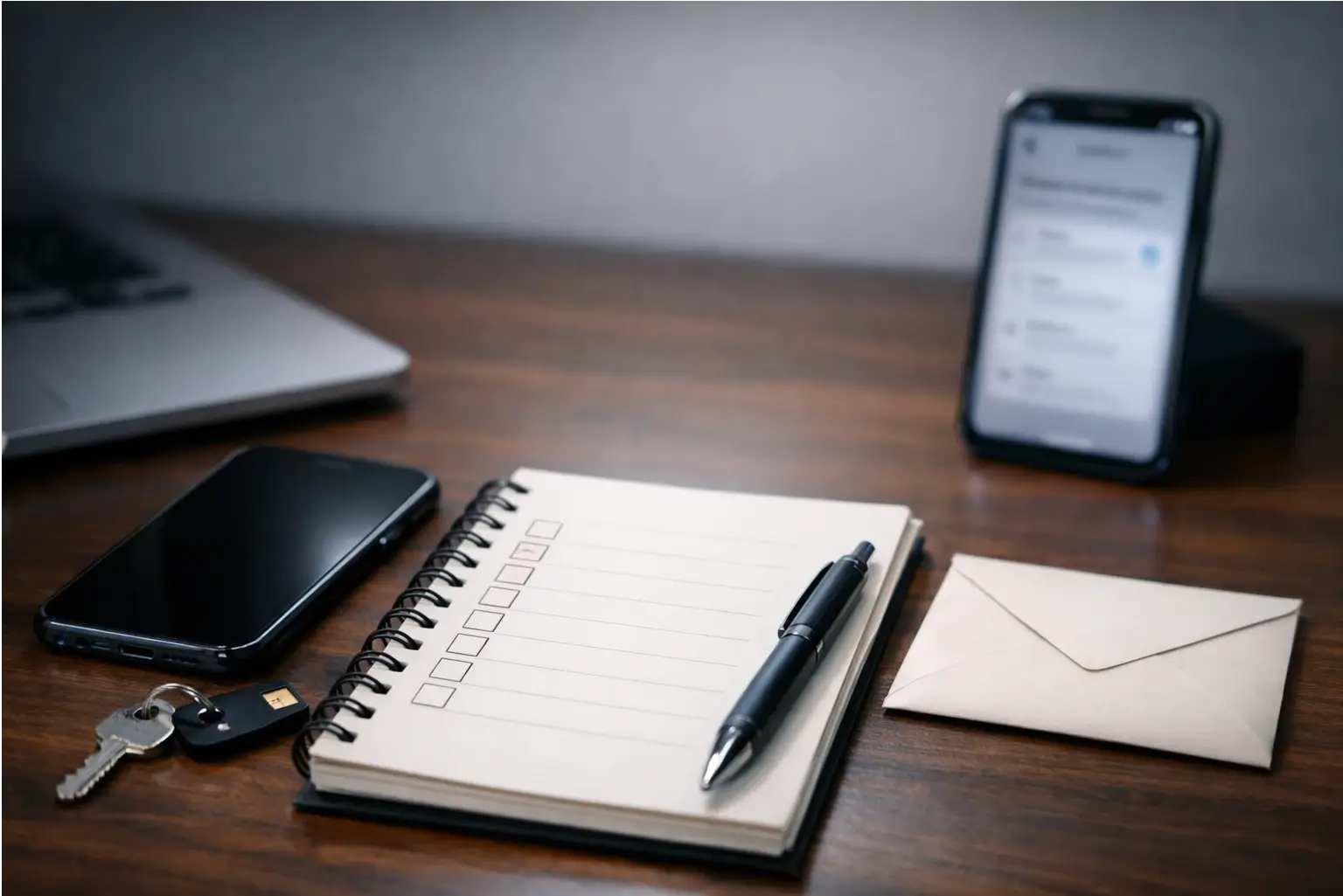
Before You Switch (10 Minutes): The Anti-Lockout Checklist
Spending 10 minutes here before switching phones can save hours of frustration later. Passkey lockouts are rare, but they almost always happen to people who skipped this part.
Confirm Your Passkeys Are Syncing
On iPhone, go to Settings, tap your name at the top, then iCloud, then Passwords and Keychain. Check that it’s switched on. On Android, open Google Password Manager through Chrome or your device settings, and confirm sync is active and your Google Account is connected.
Then confirm you know the unlock method for your provider. For Android users, that means knowing your GPM PIN. For iPhone users, it means being able to approve a new device or knowing your recovery options. These are the keys to your keys. Sort them out before anything else.
Set Recovery Options Before Anything Goes Wrong
For Apple users, set up a recovery contact in your Apple Account settings. This is a trusted person who can help you regain access if you’re locked out. Also confirm your trusted phone number is current. Apple’s iCloud Keychain recovery uses these details alongside your device passcode, and limits the number of recovery attempts to prevent guessing.
For Google users, check that your Google Account recovery options are up to date. If you ever need to reset your GPM PIN, Google verifies your identity through your Google Account first. Without a working recovery email or phone number, that process stalls fast.
Do a Quick Test Login
Before wiping or handing in your old phone, sign into two or three services that use passkeys. Google, Amazon, PayPal, and WhatsApp are good test cases if they support passkeys in your region. Try this on a second device or a different browser where possible.
This one step catches sync problems before they become real problems. If a passkey isn’t showing up during the test, you can fix it now while you still have access to the old phone.
Switching Scenarios: Pick Yours
Android to Android (Same Google Account)
- Update Chrome and your Android OS before you start.
- Sign into your Google Account on the new phone.
- Open Google Password Manager and check your passkeys are showing up.
- When prompted, enter your GPM PIN or use your Android screen lock to verify.
- Test a passkey sign-in on one of your main apps or sites to confirm it works.
Google Password Manager handles most of this behind the scenes. The step that catches people off guard is the PIN prompt on the new device. Make sure you know your GPM PIN before you switch, and this whole process takes minutes rather than hours.
iPhone to iPhone (Same Apple Account)
- Enable iCloud Keychain during setup, or go to Settings, tap your name, then iCloud, then Passwords and Keychain.
- When prompted, approve the new device from your old iPhone.
- Open a few apps or sites that use passkeys and confirm they appear and work correctly.
Apple’s sync is reliable once iCloud Keychain is switched on and you’re signed into the same Apple Account. The device approval step is a security measure, not a glitch. Complete it, and you’re done.
Android to iPhone and iPhone to Android: What Actually Happens
Right now, passkeys don’t move automatically between ecosystems. What you can sometimes do is use QR-code sign-in as a short-term bridge for individual logins. Your new phone shows a QR code, your old phone scans it, and your old phone approves the sign-in using biometric authentication such as Face ID, Touch ID, or fingerprint, without the passkey itself being transferred.
This works one login at a time. For a full move, you’ll sign into each service with your password and create a new passkey on the new device and platform. It’s the clearest practical path until the FIDO Alliance’s Credential Exchange Protocol specifications are finalised and adopted by providers.
If You Still Have Your Old Phone: The Fastest Path
Keep your old phone active and signed in until you’ve confirmed everything is working on the new one. This makes every step easier and gives you a fallback if something doesn’t go as planned.
Use QR-Code Approval When Offered
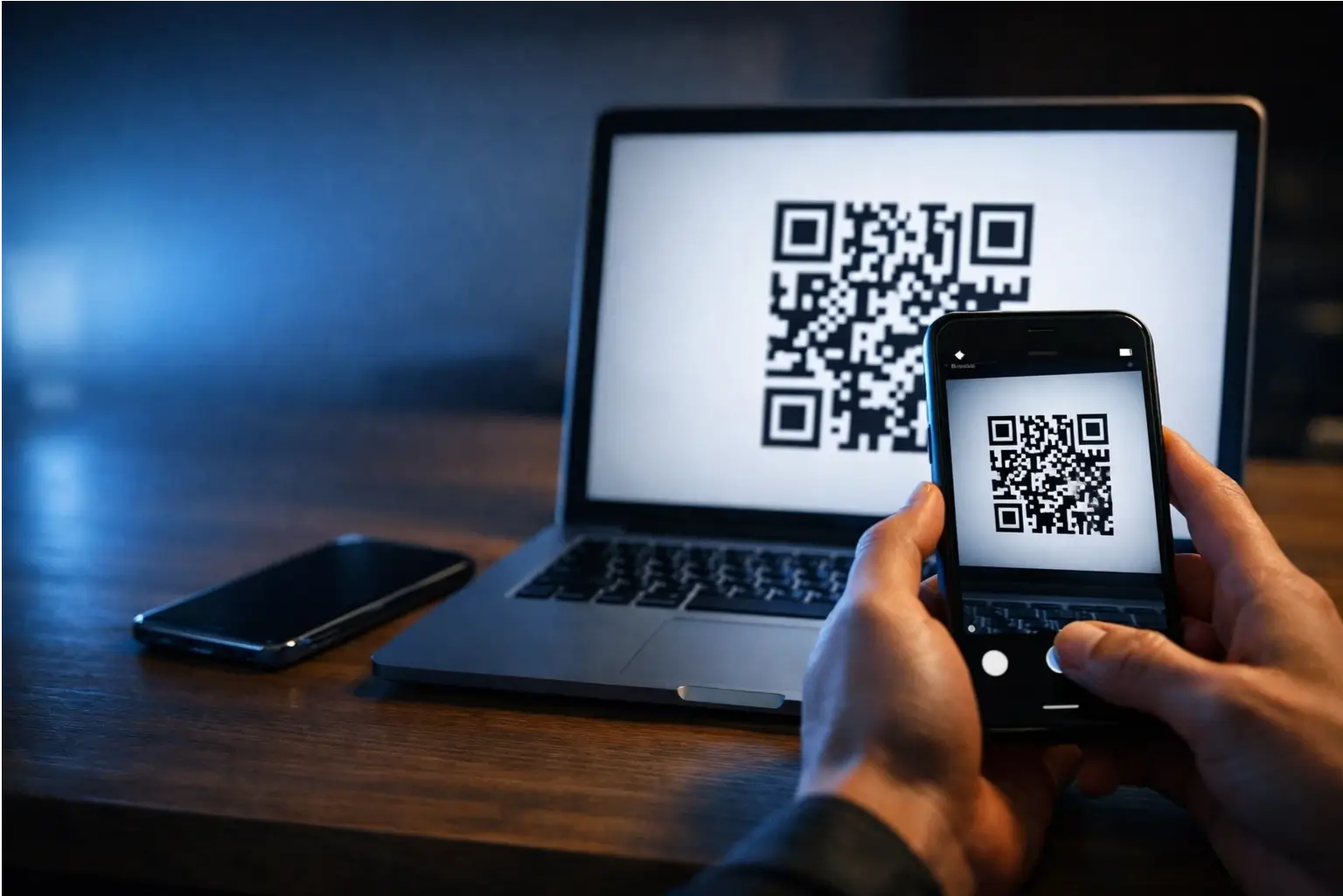
Some apps and browsers offer a QR-code sign-in option during new device setup. Your new phone shows a QR code, your old phone’s camera scans it, and your old phone uses biometric authentication to approve the login on the new device. This is called cross-device authentication and it’s built into the passkey standard.
For this to work, Bluetooth needs to be switched on both devices, and they need to be physically close, typically within a metre of each other. If the QR code won’t scan, check Bluetooth is on and try refreshing the code. These codes expire in under a minute.
Verify First, Then Remove the Old Device Safely
Once passkeys are working on the new phone, go into your Google Account or Apple Account and remove the old device from your trusted device list. This cuts off the old phone’s access cleanly and without loose ends.
Only then should you factory reset or hand in the old phone. It keeps your accounts tidy and removes any residual access that could be a security concern down the line.
If You Don’t Have Your Old Phone (Lost, Stolen, or Already Wiped)
This is the stressful scenario, but it’s manageable. Your options depend entirely on what recovery setup you had in place before the phone was lost.
Apple Recovery Path
Start by signing into your Apple Account on the new iPhone. Apple may send a verification code to your trusted phone number. If you’ve set up a recovery contact in advance, ask them to share the recovery code that Apple sends them directly.
If neither option works, Apple uses an escrow system tied to your iCloud Security Code and device passcode. Apple limits the number of recovery attempts to block guessing. If all paths are exhausted, some passkeys will need to be recreated manually, which is exactly why the pre-switch checklist matters.
Google Recovery Path
Sign into your Google Account on the new device first. Google will ask for your GPM PIN or the screen lock credentials from your old Android device. If you’ve forgotten your GPM PIN, go to passwords.google.com and follow the PIN reset flow. You’ll need to verify your Google Account identity before the reset is allowed.
After a PIN reset, your previously encrypted passkey data may not carry over. In that case, sign into each affected service using your existing password and set up a new passkey on the new phone.
Worst Case: Recreate Passkeys Per Site
If recovery options run out, the fallback is to sign into each service with your password and create a fresh passkey on the new device. It’s time-consuming, but it works. It’s also the clearest reminder of why recovery options should be set up before a switch, not after.
The FIDO Alliance’s CXP and CXF standards aim to make secure, cross-provider passkey transfer possible. Once providers adopt them, this worst-case rebuild process should become far less common.
Security Notes: Why These Steps Matter
Encryption and Device Approval (Apple vs Google)
Apple’s iCloud Keychain encrypts your passkeys with 256-bit AES encryption both in storage and during transmission. Apple does not have access to the contents of your keychain. The device approval step adds a second layer of verification: a new device only gets access after being explicitly confirmed as trusted.
Google Password Manager uses end-to-end encryption, with the GPM PIN acting as the encryption key. Google cannot access your passkeys either. Both systems are built so that your credential provider never sees the actual cryptographic keys. Your passkeys are only accessible through your verified devices and biometric authentication.
Portability Is Getting Better (FIDO CXP and CXF)
The FIDO Alliance published draft CXP and CXF specifications in 2024. In plain terms, these are agreed-upon rules for how passkeys could be safely moved from one provider to another, for example from iCloud Keychain to Google Password Manager. Major providers including Apple and Google are part of this ongoing work.
These specs are still in draft form, and the timeline for widespread adoption isn’t confirmed. The cross-platform portability gap is a known limitation of passkeys today, and the work underway is addressing it. For now, knowing your provider and your recovery options is the most practical protection you have.
Troubleshooting: Quick Fixes
Passkeys not syncing on Android: Check that Google Password Manager sync is active in your Google Account settings. Also make sure Chrome and your Android OS are on the latest available versions.
Asked for a PIN you don’t remember: This is your GPM PIN. Go to passwords.google.com, find the passkeys section, and follow the PIN reset flow. You’ll need to verify your Google Account identity before the reset proceeds.
QR-code sign-in won’t work: Check that Bluetooth is switched on both devices and that they’re within a metre of each other. Also confirm both phones are connected to the internet. Refresh the QR code if the first attempt fails, as they expire quickly.
Passkeys missing on iPhone after setup: Go to Settings, tap your name, then iCloud, then Passwords and Keychain, and confirm it’s switched on. If it’s already on, sign out of iCloud and back in. You may also be asked to approve the device from another trusted Apple device.
Frequently Asked Questions
Can you transfer passkeys to a new phone without the old phone?
Yes, in most cases. Apple and Google both offer account-level recovery through trusted phone numbers, recovery contacts, or account verification. Apple uses iCloud Keychain escrow recovery. Google uses a GPM PIN reset via your Google Account. Some passkeys may still need to be recreated if no recovery options were set up beforehand.
The recovery process is more straightforward if you followed the pre-switch steps above. The fewer options you had in place, the more you’ll rely on password-based sign-in as a fallback for each service.
Where are my passkeys stored: iCloud Keychain or Google Password Manager?
On iPhone, passkeys are stored in iCloud Keychain by default. On Android, they’re in Google Password Manager, or another Android credential provider you’ve selected in your device settings on Android 14 or later. Chrome on iOS 17 or later also lets you save passkeys to Google Password Manager instead of iCloud Keychain.
Not sure which you’re using? Check your device’s password settings or open the Chrome app and go to the password manager section. It’ll show you what’s saved and where.
Why am I being asked for a Google Password Manager PIN on a new device?
This is Google’s security check for synced passkeys. The GPM PIN, which defaults to 6 digits, protects your end-to-end encrypted passkey data. Google requires it the first time you access passkeys on a new device, confirming you’re the account owner before granting access to credentials stored in that Google Account.
If you’ve forgotten your GPM PIN, go to passwords.google.com and follow the reset process. You’ll verify your Google Account identity first, then set a new PIN.
What if I’m moving from iPhone to Android? Will my passkeys come with me?
Not automatically. Passkeys in iCloud Keychain don’t transfer to Google Password Manager yet. The FIDO Alliance has published draft Credential Exchange Protocol specifications to make this possible, but broad adoption hasn’t happened. For now, sign in with your existing password on the new device and set up a fresh passkey per service.
The FIDO portability work is ongoing. Until it’s widely adopted, cross-platform moves require manual passkey recreation for each service you use.
Is Google Password Manager passkey sync end-to-end encrypted?
Yes. Google uses end-to-end encryption for passkey sync in Google Password Manager, with the GPM PIN serving as the encryption key. This means Google itself cannot access your passkeys. Your credentials are only accessible through your verified devices and the PIN or Android screen lock that unlocks the encrypted layer.
Apple’s iCloud Keychain uses the same privacy model. Both providers are designed so that even they can’t see what’s inside your stored credentials.
Are passkeys safer than passwords when switching devices?
Passkeys are phishing-resistant by design. There’s no password to type into a fake login page because sign-in uses a cryptographic key that never leaves your device. Each passkey is unique to one service, so credential reuse isn’t a risk. The main vulnerability window is the device switch itself, which is what this checklist addresses.
Once passkeys are set up on the new device, the security benefits carry on as before. The transfer process is where careful steps matter most.
When will passkeys be easier to move between providers?
The FIDO Alliance published draft Credential Exchange Protocol and Credential Exchange Format specifications in 2024. These are designed to create a secure, standardised way to move passkeys between providers. The timeline for wide adoption isn’t confirmed yet, as these remain draft specs, but major providers including Apple and Google are involved in the process.
Once these standards are finalised and adopted, switching from iPhone to Android without losing your passkeys should become a much simpler process.








No Comment! Be the first one.